![Transmural Platform [TMP]](https://www.transmuralplatform.eu/wp-content/uploads/2024/07/logo-tmprescription.png)
EHR Integration
As Electronic Health Records (EHR) dictate most HCP workflows, we notice most hospitals prefer a direct integration of TMP within their EHR.
This not only benefits the HCP, who has a direct and user friendly integration. It also reduces integration work at the EHR side.
This way the EHR doesn’t need to make individual connections to every Transmural Data Provider.
To integrate we have foreseen a standard way of integrating with TMP.
This is done through basic REST calls with a very well known authentication protocol, which makes integration easy for the EHR.
However, if the EHR already has a standard way of integrating, TMP will release a EHR adapter that reduces the work at the side of the EHR.
This mitigates the effort needed at the EHR side to integrate with TMP.
Note that this EHR integration can work for any type of EHR. We’ve seen many hospitals having multiple EHR systems covering most of their workflows with a large EHR vendor and having some custom EHR’s for specific departments. All hospital EHR’s can use the same integration to connect to TMP.
Phased approach
To start integrating with TMP, we recommend using a phased approach.
The first step is connecting the TMP Portal to your EHR. This way all basic remote monitoring functionality becomes available to the HCP.
- An HCP can request a Transmural Data Provider from within his EHR
- The Transmural Data Provider can send a basic PDF output back and show it within the TMP Portal
- The HCP can see the results in the PDF

A second step is dealing with the results of the remote monitoring sessions. This is carepath specific and will trigger workflow questions per carepath.
- Where do we want to store the PDF file longterm.
- Can we start using the structured FHIR data instead and what are the benefits for this carepath
- Do we want to use this data for primary use : visualize this structured data, should we act on it based on alerting, …
- Do we want to use this data for secondary use : analyse this data, useful for other carepaths, …
This second step can on itself happen in multiple phases, per carepath.
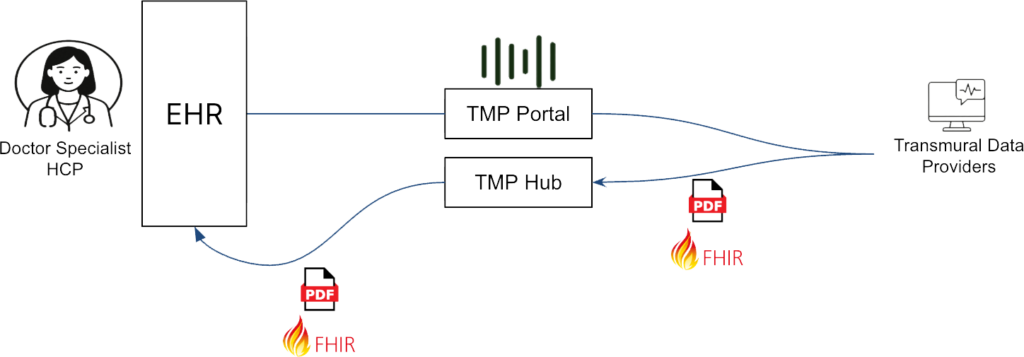
Integrating your EHR
Integration with TMP Portal
This chapter explains how you integrate your EHR with the TMP Portal.
The Portal has two big functionalities :
- It streamlines the context integration of the EHR towards the Transmural Data Providers.
Making sure they receive the right context to run a successful remote monitoring. Only the data that is really required will be traveling towards the Data Provider. - It shows all Data Providers available to the HCP. Making sure the correct Data Provider can be requested and extra input can be given to the remote monitoring provider, even when it doesn’t exist in the EHR.
Note that this is the default integration. If you, as a EHR provider, would like to integrate your existing context integration possibilities. You can contact us at support@transmuralplatform.eu.
Step 1 : Make sure the HCP can open the TMP Portal
The TMP Portal requires a button, link or tab where the HCP can open the TMP Portal.
Step 2 : Authenticating with TMP
Each Prescriber (hospital) receives a unique clientId and clientSecret, to request one, the hospital reaches out to support@transmuralplatform.eu.
The first step in the process is to request an access_token from the /auth call, the OpenAPI specifications for this call can be found here.
Step 3 : Send the right context towards TMP
With the access_token from the /auth call, the next step is the context (patient information, prescribing HCP, …) towards the Transmural Platform. Sending the context happens via the /request call for which the OpenAPI specifications can be found here.
Step 4 : Display the URI in your EHR
This URL is HMAC (Hash-Bashed Message Authenticated Code) protected with an expiry of 1 hour. This means that the url which is returned by the TMP Portal can only be used for 1 hour to prescribe a Transmural Care Data Provider. Afterwards a new request needs to be triggered.
That’s it! When you’ve done this, HCP’s can start requesting any compatible Data Provider.
If you’re ready for the next step and want to control the results that these Transmural Data Providers generate, read the documentation below.
Actions
From within the EHR it’s possible to send two types of actions if the Transmural Data Provider supports it.
Stop Action
When this action is available you’re able to stop the Session. This could be useful when you’re being charged differently if a session is in-progress versus a session is stopped. TMP only allows the stop-action to be triggered on a Session in status: “accepted” or “in-progress”.
API Documentation can be found here.
Cancel Action
The cancel action could be made when a request was made mistakenly and you want to undo this. TMP only allows the cancel-action to be triggered on a Session in status: “requested” or “accepted”.
API Documentation can be found here.
Note : This might not be possible when measurements have already been linked to the session. In that case you’ll have to stop the current one and start a new one.
Listing patient sessions
To know which requests have been created already for a specific patient the following API can be used. This API will only return prescriptions for the authenticated prescriber.
API Documentation can be found here.
Integration with TMP Hub
The TMP Hub is all about broadcasting the results of the Transmural Data Providers back to the EHR.
To receive the data as soon as possible the TMP Hub has an eventing mechanism that informs the EHR as soon as there is useful data available.
This can be a status update (ex. did the data provider accept the request) and/or attachments (the actual resulting information).
Note that the eventing mechanism will never send the actual results, but will only link to the results. This is done to avoid transferring a lot of data to the EHR, while it will never be read.
Which statusses can you receive?
The possible statuses of a request you can receive is :
- accepted : the request has been accepted by the Transmural Data Provider
- in-progress : the session is ongoing and you might receive new results
- completed : the session is completed and new results are not to be expected anymore
- cancelled : the session has been cancelled
- stopped : the session has been manually stopped by the HCP
When the Transmural Platform receives an update for a session from a Transmural Care Data Provider, TMP will inform the EHR system about it through an API call.
The details of the API call the Transmural Platform makes to the Endpoint of the EHR can be found here.
A hospital (prescriber) account can have zero or more Webhooks configured to send the data received from the Transmural Care Data Provider to. Each webhook can be configured to only allow messages from a particular Carepath to be send towards the webhook. Next to the filtering on carepath there is also the possibility to enable security on the webhook.
The Transmural Platform currently supports the following security implementations on the API call towards the EHR system:
- mTLS
- Service Account
- Authorization Header
- None (in case of whitelisting)
Asset Proxy
The Data Provider’s attachments are hosted on the Provider’s own system. As a result, hospitals or EHR systems may need to allow outbound access to those endpoints through their firewall. If that isn’t feasible, TMP offers a Proxy solution.
When the Proxy is enabled, each attachment URL pointing to the Provider is replaced with a unique TMP URL. Accessing this URL transparently proxies the request to the Provider-hosted attachment.
The Proxy URL is protected via the Authorization header, consistent with other TMP API calls.
If you want to enable the Proxy functionality for your account, please reach out to support@transmuralplatform.eu.
Asset Storage Links
The EHR system can also verify if the received attachment is from a trusted source. To do so, the TransmuralPlatform allows a Transmural Care Data Provider to fill out the different sources where attachments can be stored on their platform. The Transmural Platform shares this information (for all the Transmural Care Data Providers with the EHR systems so they can verify if the received attachment link is from a trusted source.
More information on the endpoint to fetch the list of trusted storage links can be found here.
Additional Notes
This list of whitelisted URLs may be updated over time as new asset storage locations are added or old ones are removed by providers.
Testing
For testing purposes of both TMP Portal and TMP Hub, we have foreseen a Dummy Transmural Care Data Provider. This can be enabled on request through support@transmuralplatform.eu.
The Dummy Transmural Care Data Provider will automatically accept the request after 1 minute. After accepting the request, the Dummy Transmural Care Data Provider will send a dummy WEIGHT measurement every 5 minutes and this for 24 hours. After 24 hours, the Dummy Transmural Care Data Provider will mark the request as completed.
| Status | Timing |
| accepted | After 1 minute |
| in-progress | After 5 minutes with FHIR attachment of WEIGHT measurement Repeated every 5 minutes for 24h |
| completed | After 24h |