![Transmural Platform [TMP]](https://www.transmuralplatform.eu/wp-content/uploads/2024/07/logo-tmprescription.png)
Hospital Integration
The goal of TMP is to reduce integration cost of a Hospital to a minimum.
That’s why we create the integration with the EHR itself. If you’re a hospital with a custom EHR we recommend you to check the EHR integration.
This page explains you how get started
Step 1 : Request a TMP account
Every hospital requires a unique account to TMP.
This can be requested by reaching out to support@transmuralplatform.eu.
This will give you a unique identifier and secret, which will need to be configured in your EHR integration.
Step 2 : Configure your EHR
Here you can see the instructions per EHR to get started.
| EHR | Status – TMP Portal | Status – Result Integration | Want acces? |
|---|---|---|---|
| KWS – Nexuzhealth | Production Ready | Production Ready | KWS Hospital Instructions |
| Millenium – Cerner / Oracle | Successfully Tested | TBC | Reach out to Millenium and support@transmuralplatform.eu to let us know you want to start |
| HiX – ChipSoft | Successfully Tested | in Progress | Reach out to ChipSoft and support@transmuralplatform.eu to let us know you want to start |
| KLAP – UZ Gent | Confirmed | in Progress | Reach out to UZ Gent and support@transmuralplatform.eu to let us know you want to start |
| Hyperspace – Epic | Production Ready | in Progress | Reach out to Epic and support@transmuralplatform.eu to let us know you want to start |
| Meddos – Zorgi (Infohos) | TBC | TBC | Reach out to Zorgi and support@transmuralplatform.eu to let us know you want to start |
| I.S.H.Med – Oracle/SAP | TBC | TBC | Reach out to Oracle and support@transmuralplatform.eu to let us know you want to start |
| Synops | Production Ready | in Progress | Reach out to Synops and support@telemonitorings-prescription.com to let us know you want to start |
| Polaris – Softway Medical | TBC | TBC | Reach out to Softway Medical and support@transmuralplatform.eu to let us know you want to start |
| XCare – Zorgi | In Progress | TBC | Reach out to Zorgi and support@transmuralplatform.eu to let us know you want to start |
| Omnipro – Zorgi | TBC | TBC | Reach out to Zorgi and support@transmuralplatform.eu to let us know you want to start |
| Primuz – UZ Brussel | Production Ready | TBC | Primuz Hospital Instructions |
TMP Portal
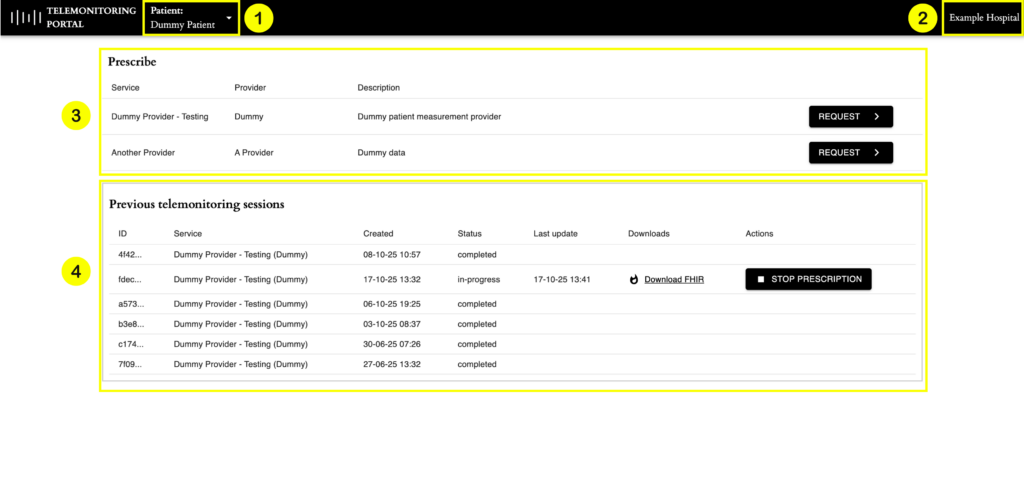
Below you can find a screenshot on how the TMP Portal looks like when it’s being launched from within the EHR.
- Context information received from the EHR. This clickable component will give you an overview of all the information received from the EHR.
- Name of the Prescriber (Hospital) for which the HCP is currently starting the TMP Order.
- An overview of the different Data Providers which are available.
- An overview of the previous Telemonitoring Sessions that have been launched for this patient. In case data has been received for one of the sessions the HCP will be able to download that data from within the TMP Portal. If the provider supports actions like cancelling or stopping the sessions, those actions will also be visible here.
Data Retention
TMP allows hospitals to configure how long the platform should keep the information after a request has been completed. This can vary between 30 days up to 5 years. At the moment, please reach out to us to configure your Data Retention policy.
Domains
To make sure HCPs using TMP Portal through your EHR only see relevant providers, it is possible to group the configured providers for your hospital into different domains.
Virtual Wards
TMP can smoothly integrate with Virtual Ward Systems. If enabled, the Virtual Ward System will receive Patient Context data and Telemonitoring Data. The Patient Context data will be send to the Virtual Ward System when the Telemonitoring Session has been accepted by the Telemonitoring Provider. The Telemonitoring Data will be shared with the Virtual Ward System at the same time the data is shared towards the EHR system for Outcome integration, on the moment TMP receives the data from the Telemonitoring Provider.
If at some point you have additional questions or need guidance, feel free to reach out to support@transmuralplatform.eu. Our team is happy to help.